Category: Hardware

HP BladeSystem Onboard Administrator – How to Make “SHOW ALL” Inventory Report

Logon to the HP Onboard Administrator GUI and then after the IP address of the Onboard Administrator add /cgi-bin/showAll. E.g. https://192.168.x.x/cgi-bin/showAll

More examples can be found in this document:
HP BladeSystem Onboard Administrator – How to take “SHOW ALL” Inventory Report

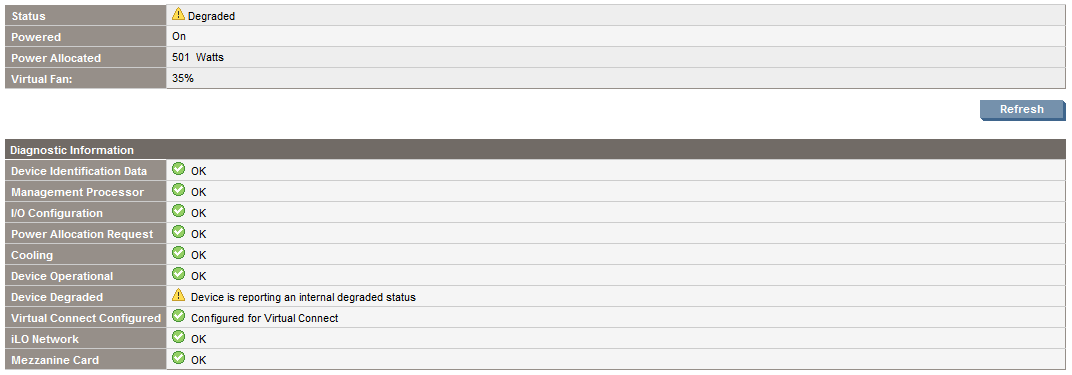
HP Proliant: Device is reporting an internal degraded status

When you see an exclamation mark next to the blade server, verify the server hardware
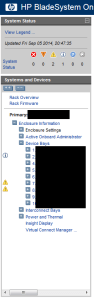
DeviceBays
First click on the server device bay and check its status
Degraded
If it shows Device is reporting an internal degraded status, first upgrade the iLO firmware. Then verify if it was solved.

If not, verify if there is a faulty disk in the disk array with hpacucli ctrl all show config

root@linux:~ # hpacucli ctrl all show config

Smart Array P400i in Slot 0 (Embedded) (sn: )

array A (SAS, Unused Space: 0 MB)

logicaldrive 1 (136.7 GB, RAID 1, OK)

physicaldrive 1I:1:1 (port 1I:box 1:bay 1, SAS, 146 GB, OK)
physicaldrive 1I:1:2 (port 1I:box 1:bay 2, SAS, 146 GB, OK)

Install hpasmcli. Part of HP System Health Application and Command Line Utilities (hp-health)

root@linux:/tmp # rpm -ivh hp-health-9.40-1602.37.sles10.x86_64.rpm
Preparing… ########################################### [100%]
1:hp-health ########################################### [100%]
Please read the Licence Agreement for this software at

/opt/hp/hp-health/hp-health.license

By not removing this package, you are accepting the terms
of the “HP Proliant Essentials Software End User License Agreement”.
Using Proliant Standard
IPMI based System Health Monitor
Using standard Linux IPMI device driver
Starting ipmi drivers: done
Starting Proliant Standard
IPMI based System Health Monitor (hpasmlited):
done

Starting HP Advanced Server Recovery Daemon done
The hp-health RPM has installed successfully.

Start hpasmcli

root@linux:~ # hpasmcli
HP management CLI for Linux (v2.0)
Copyright 2008 Hewlett-Packard Development Group, L.P.

————————————————————————–
NOTE: Some hpasmcli commands may not be supported on all Proliant servers.
Type ‘help’ to get a list of all top level commands.
————————————————————————–

Another component that usually gives problem is a Memory DIMM.

hpasmcli> show dimm
DIMM Configuration
——————
Cartridge #: 0
Module #: 1
Present: Yes
Form Factor: fh
Memory Type: OTHER(14h)
Size: 4096 MB
Speed: 667 MHz
Supports Lock Step: No
Configured for Lock Step: No
Status: Ok

Cartridge #: 0
Module #: 2
Present: Yes
Form Factor: fh
Memory Type: OTHER(14h)
Size: 4096 MB
Speed: 667 MHz
Supports Lock Step: No
Configured for Lock Step: No
Status: Ok

Cartridge #: 0
Module #: 3
Present: Yes
Form Factor: fh
Memory Type: OTHER(14h)
Size: 4096 MB
Speed: 667 MHz
Supports Lock Step: No
Configured for Lock Step: No
Status: Ok

Cartridge #: 0
Module #: 4
Present: Yes
Form Factor: fh
Memory Type: OTHER(14h)
Size: 4096 MB
Speed: 667 MHz
Supports Lock Step: No
Configured for Lock Step: No
Status: Ok

Cartridge #: 0
Module #: 5
Present: Yes
Form Factor: fh
Memory Type: OTHER(14h)
Size: 4096 MB
Speed: 667 MHz
Supports Lock Step: No
Configured for Lock Step: No
Status: Ok

Cartridge #: 0
Module #: 6
Present: Yes
Form Factor: fh
Memory Type: OTHER(14h)
Size: 4096 MB
Speed: 667 MHz
Supports Lock Step: No
Configured for Lock Step: No
Status: DIMM is degraded

Cartridge #: 0
Module #: 7
Present: Yes
Form Factor: fh
Memory Type: OTHER(14h)
Size: 4096 MB
Speed: 667 MHz
Supports Lock Step: No
Configured for Lock Step: No
Status: Ok

Cartridge #: 0
Module #: 8
Present: Yes
Form Factor: fh
Memory Type: OTHER(14h)
Size: 4096 MB
Speed: 667 MHz
Supports Lock Step: No
Configured for Lock Step: No
Status: Ok

Cartridge #: 0
Module #: 9
Present: Yes
Form Factor: fh
Memory Type: OTHER(14h)
Size: 4096 MB
Speed: 667 MHz
Supports Lock Step: No
Configured for Lock Step: No
Status: Ok

Cartridge #: 0
Module #: 10
Present: Yes
Form Factor: fh
Memory Type: OTHER(14h)
Size: 4096 MB
Speed: 667 MHz
Supports Lock Step: No
Configured for Lock Step: No
Status: Ok

Cartridge #: 0
Module #: 11
Present: Yes
Form Factor: fh
Memory Type: OTHER(14h)
Size: 4096 MB
Speed: 667 MHz
Supports Lock Step: No
Configured for Lock Step: No
Status: Ok

Cartridge #: 0
Module #: 12
Present: Yes
Form Factor: fh
Memory Type: OTHER(14h)
Size: 4096 MB
Speed: 667 MHz
Supports Lock Step: No
Configured for Lock Step: No
Status: Ok

Cartridge #: 0
Module #: 13
Present: Yes
Form Factor: fh
Memory Type: OTHER(14h)
Size: 4096 MB
Speed: 667 MHz
Supports Lock Step: No
Configured for Lock Step: No
Status: Ok

Cartridge #: 0
Module #: 14
Present: Yes
Form Factor: fh
Memory Type: OTHER(14h)
Size: 4096 MB
Speed: 667 MHz
Supports Lock Step: No
Configured for Lock Step: No
Status: Ok

Cartridge #: 0
Module #: 15
Present: Yes
Form Factor: fh
Memory Type: OTHER(14h)
Size: 4096 MB
Speed: 667 MHz
Supports Lock Step: No
Configured for Lock Step: No
Status: Ok

Cartridge #: 0
Module #: 16
Present: Yes
Form Factor: fh
Memory Type: OTHER(14h)
Size: 4096 MB
Speed: 667 MHz
Supports Lock Step: No
Configured for Lock Step: No
Status: Ok

hpasmcli>

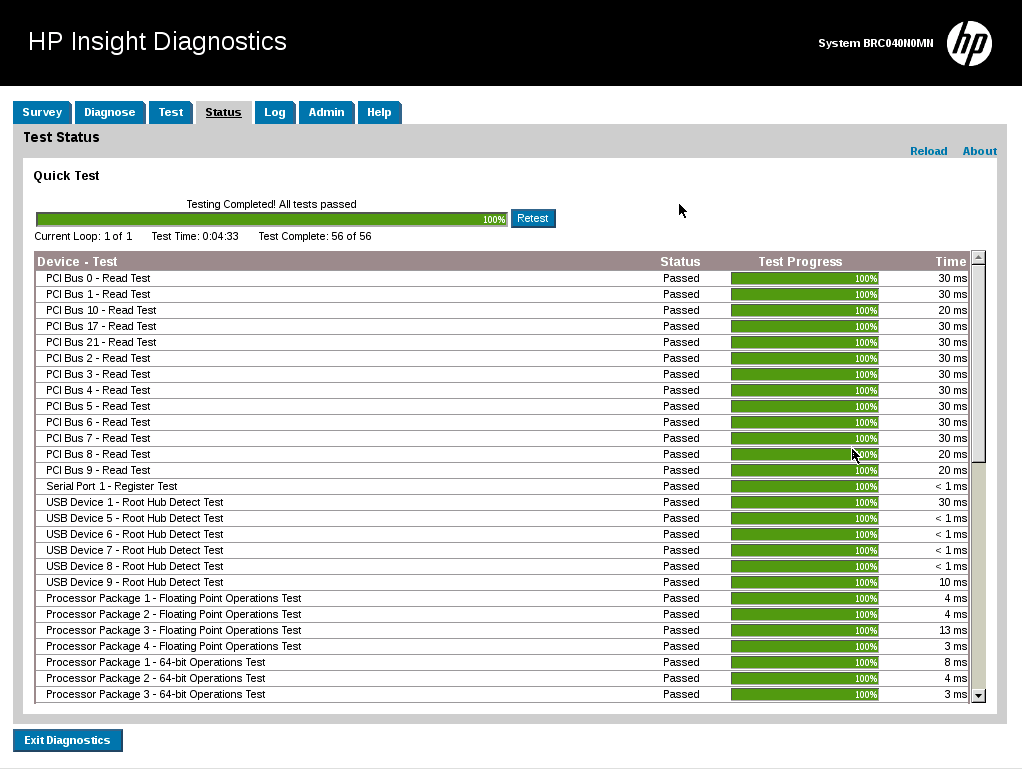
After this, you’ll have to run diagnostics using HP Insight Online Diagnostics that you installed on the operating system or boot with the CD/DVD to run the HP Insight Offline Diagnostics

Configure HP Remote Insight Lights-Out Edition II Board (RILOE II) – ILO 1

In an HP Proliant DL380 G3 I had an older iLO.
riloeII

This version is also called Remote Insight Lights-Out Edition II Board (RILOE II)
User guide for HP Remote Insight Lights-Out Edition II Board

The ROM-based setup utility F8 (RBSU F8) allows you to configure RILOE II during server boot-up. RBSU F8 is useful for configuring servers that do not use DNS/DHCP. RBSU F8 is available every time the server is booted. RBSU F8 cannot run remotely.

06

Turn on disk UID on an HP Smart Array Controller

I have an HP ProLiant DL580 G3 and a disk had to be replaced.

It was identified the disk to be replaced was the Physicaldrive 2:2

root@linux:~ # hpacucli ctrl all show config

Smart Array 642 in Slot 3 (sn: P92260PXQS4036)

array A (Parallel SCSI, Unused Space: 0 MB)

logicaldrive 1 (273.5 GB, RAID 5, OK)

physicaldrive 2:0 (port 2:id 0 , Parallel SCSI, 146.8 GB, OK)
physicaldrive 2:1 (port 2:id 1 , Parallel SCSI, 146.8 GB, OK)
physicaldrive 2:2 (port 2:id 2 , Parallel SCSI, 146.8 GB, OK)

To turn on the disk UID, identify the controller and physical drive location

root@linux:~ # hpacucli ctrl slot=3 pd 2:2 modify led=on

To turn off the disk UID, identify the controller and physical drive location

root@linux:~ # hpacucli ctrl slot=3 pd 2:2 modify led=off

MP Login – LOGIN written all in capital letters

Logging into a MP of an HP Integrity server

emerson@linux:~ $ telnet 10.20.30.40
Trying 10.20.30.40…
Connected to 10.20.30.40.
Escape character is ‘^]’.

*************************************************************************
This is a private system.
Do not attempt to login unless you are an authorized user.
Any authorized or unauthorized access or use may be monitored and can
result in criminal or civil prosecution under applicable law.
*************************************************************************

*************************************************************************
Only default users are configured.
Use one of the following user/password pairs to login:

Admin/Admin
Oper/Oper
*************************************************************************

MP login: Admin
MP password: *****

Hewlett-Packard Integrity Integrated Lights-Out 2

(c) Copyright Hewlett-Packard Company 1999-2010. All Rights Reserved.

MP Host Name: mp002264949b25

Revision F.02.25

*************************************************************************
MP ACCESS IS NOT SECURE
Default MP users are currently configured and remote access is enabled.
Modify default users’ passwords or delete default users (see UC command)
OR
Disable all types of remote access (see SA command)
*************************************************************************

MP MAIN MENU:

CO: Console
VFP: Virtual Front Panel
CM: Command Menu
SMCLP: Server Management Command Line Protocol
CL: Console Log
SL: Show Event Logs
HE: Main Help Menu
X: Exit Connection

After you type co to see the console, you will see LOGIN written all in capital letters

[mp002264949b25] MP> co

[Use Ctrl-B or ESC-( to return to MP main menu.]

– – – – – – – – – – Prior Console Output – – – – – – – – – –
\LOGIN INCORRECT

\WAIT FOR LOGIN RETRY: ..
LOGIN:
LOGIN: ROOT
\PASSWORD:
\LOGIN INCORRECT

\WAIT FOR LOGIN RETRY: ..
LOGIN:
– – – – – – – – – – – – Live Console – – – – – – – – – – – –

Press CTRL + D to go back to the normal login screen

Use of this network is restricted to authorized users only. User activity may be monitored and/or recorded. Anyone using this network expressly consents to such monitoring and/or recording. BE ADVISED: if possible criminal activity is detecords, along with certain personal information, may be provided to law enforcement officials.
Console Login:

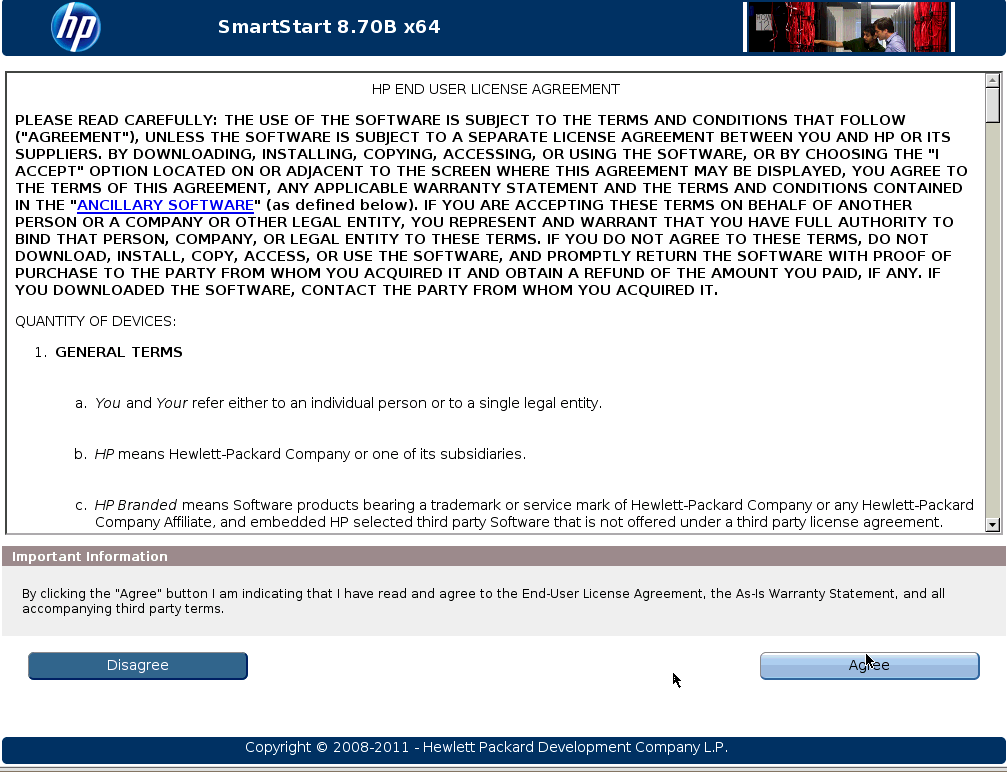
HP Insight Diagnostics Offline – Hardware verification on HP Proliant Servers

To run this utility, launch the SmartStart CD. Download the ISO and run it from Virtual Media or burn a CD
HP SmartStart 8.40 CD x32 for HP Proliant G3 or older
HP SmartStart 8.70 (B) CD x64

Also available on HP SPP
HP Service Pack for ProLiant (SPP) Version 2014.06.0

This is the last SPP release to support G5 generation and earlier servers.
This is the final SPP release that will contain support for Red Hat Enterprise Linux 5. Future SPP releases will not contain support for Red Hat Enterprise Linux 5

HP Smart Start

SmartStart02

SmartStart03

SmartStart04

SmartStart05

SmartStart06

SmartStart07

HP SPP

spp01

spp02

spp03

spp04

spp05

HP Proliant BL680C G5 and G7 – Change serial number back to old one

HP Proliant BL680C G5
Select User guide (27)
And then ProLiant BL680c Generation 5 Server Blade User Guide page 53

HP Proliant BL680C G7
Select User guide (22)
And then ProLiant BL680c Generation 7 Server Blade User Guide page 84 / 85

Re-entering the server serial number and product ID
After you replace the system board, you must re-enter the server serial number and the product ID.
1. During the server startup sequence, press the F9 key to access RBSU.
2. Select the System Options menu.
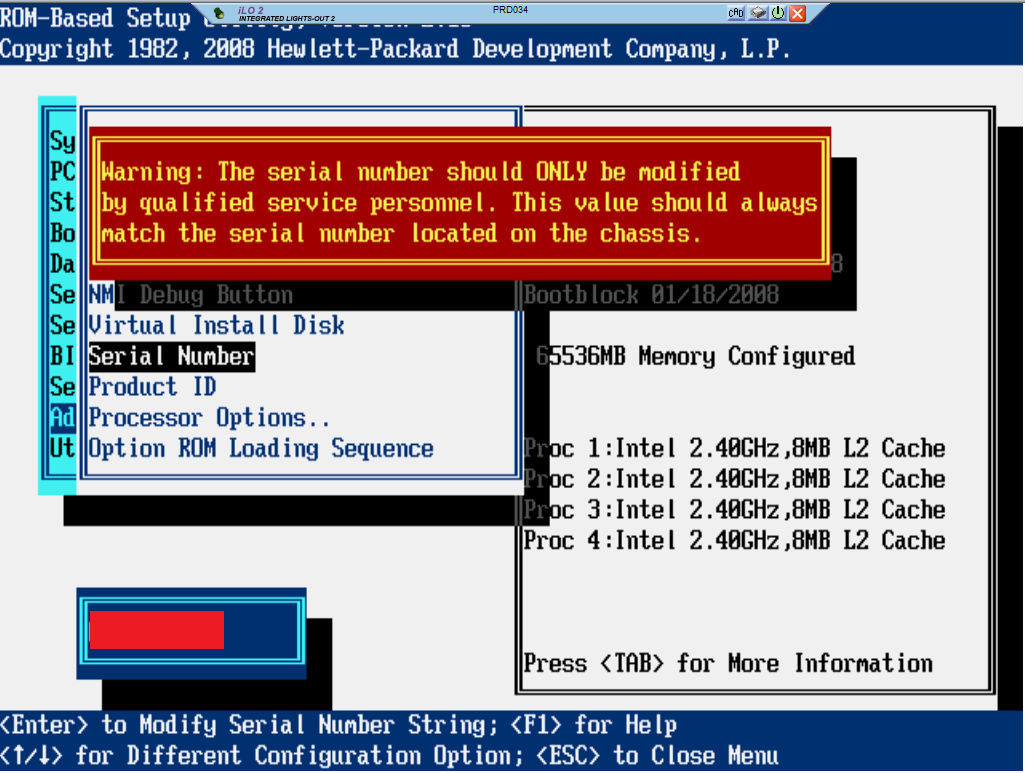
3. Select Serial Number. The following warning is displayed:
WARNING! WARNING! WARNING! The serial number is loaded into the system
during the manufacturing process and should NOT be modified. This option
should only be used by qualified service personnel. This value should
always match the serial number sticker located on the chassis.
4. Press the Enter key to clear the warning.
5. Enter the serial number and press the Enter key.
6. Select Product ID.
7. Enter the product ID and press the Enter key.
8. Press the Esc key to close the menu.
9. Press the Esc key to exit RBSU.
10. Press the F10 key to confirm exiting RBSU. The server will automatically reboot.

This is the official instructions in the manual. I applied the following steps:

1 – Advanced Options

RBSU 1 Serial Number

2 – Serial Number

RBSU 2 Serial Number

3 – Inserting the new one and then exiting

RBSU 3 Serial Number

Querying HBA information under Linux

To check the HBA cards installed on your system, check lspci

root@linux:~ # lspci | grep -i fibre
13:01.0 Fibre Channel: Emulex Corporation Thor-X LightPulse Fibre Channel Host Adapter (rev 01)
13:02.0 Fibre Channel: Emulex Corporation Thor-X LightPulse Fibre Channel Host Adapter (rev 01)

You can query various information using systool

root@linux:~ # systool -av -c fc_host
Class = “fc_host”

Class Device = “host0”
Class Device path = “/sys/class/fc_host/host0”
active_fc4s = “0x00 0x00 0x01 0x00 0x00 0x00 0x00 0x01 0x00 0x00 0x00 0x00 0x00 0x00 0x00 0x00 0x00 0x00 0x00 0x00 0x00 0x00 0x00 0x00 0x00 0x00 0x00 0x00 0x00 0x00 0x00 0x00 ”
fabric_name = “0x100000051eecc200”
issue_lip =
maxframe_size = “2048 bytes”
node_name = “0x20000000c95e5ee1”
port_id = “0x0ab040”
port_name = “0x10000000c95e5ee1”
port_state = “Online”
port_type = “NPort (fabric via point-to-point)”
speed = “2 Gbit”
supported_classes = “Class 3”
supported_fc4s = “0x00 0x00 0x01 0x00 0x00 0x00 0x00 0x01 0x00 0x00 0x00 0x00 0x00 0x00 0x00 0x00 0x00 0x00 0x00 0x00 0x00 0x00 0x00 0x00 0x00 0x00 0x00 0x00 0x00 0x00 0x00 0x00 ”
supported_speeds = “1 Gbit, 2 Gbit”
tgtid_bind_type = “wwpn (World Wide Port Name)”
uevent =

Device = “host0”
Device path = “/sys/devices/pci0000:00/0000:00:04.0/0000:12:00.0/0000:13:01.0/host0”
uevent =

Class Device = “host1”
Class Device path = “/sys/class/fc_host/host1”
active_fc4s = “0x00 0x00 0x01 0x00 0x00 0x00 0x00 0x01 0x00 0x00 0x00 0x00 0x00 0x00 0x00 0x00 0x00 0x00 0x00 0x00 0x00 0x00 0x00 0x00 0x00 0x00 0x00 0x00 0x00 0x00 0x00 0x00 ”
fabric_name = “0x100000051ef63200”
issue_lip =
maxframe_size = “2048 bytes”
node_name = “0x20000000c95e93bd”
port_id = “0x14b040”
port_name = “0x10000000c95e93bd”
port_state = “Online”
port_type = “NPort (fabric via point-to-point)”
speed = “2 Gbit”
supported_classes = “Class 3”
supported_fc4s = “0x00 0x00 0x01 0x00 0x00 0x00 0x00 0x01 0x00 0x00 0x00 0x00 0x00 0x00 0x00 0x00 0x00 0x00 0x00 0x00 0x00 0x00 0x00 0x00 0x00 0x00 0x00 0x00 0x00 0x00 0x00 0x00 ”
supported_speeds = “1 Gbit, 2 Gbit”
tgtid_bind_type = “wwpn (World Wide Port Name)”
uevent =

Device = “host1”
Device path = “/sys/devices/pci0000:00/0000:00:04.0/0000:12:00.0/0000:13:02.0/host1”
uevent =

Checking numerous status. Example shown below is a different server

root@linux:~ # systool -c scsi_host -v -d host1
Class = “scsi_host”

Class Device = “host1”
Class Device path = “/sys/class/scsi_host/host1”
84xx_fw_version = “”
beacon = “Disabled”
cmd_per_lun = “3”
driver_version = “8.03.07.15.05.09-k”
eh_deadline = “0”
fabric_param = “1280”
flash_block_size = “0x8000”
fw_state = “0x3 0x2a8c 0x9100 0x5 0x0”
fw_version = “5.06.03 (9496)”
host_busy = “0”
isp_id = “0000 0000 0000 0000”
isp_name = “ISP2432”
max_npiv_vports = “127”
model_desc = “PCI-Express Dual Channel 4Gb Fibre Channel HBA”
model_name = “QLE2462”
mpi_version = “”
npiv_vports_inuse = “0”
optrom_bios_version = “1.08”
optrom_efi_version = “1.02”
optrom_fcode_version= “1.13”
optrom_fw_version = “4.00.12 2”
pci_info = “PCIe (2.5Gb/s x4)”
phy_version = “”
proc_name = “”
scan =
serial_num = “”
sg_tablesize = “255”
state = “Link Up – F_Port”
total_isp_aborts = “0”
uevent =
unchecked_isa_dma = “0”
unique_id = “0”
vlan_id = “”
vn_port_mac_address = “”
vport_create =
vport_delete =
zio_timer = “200 us”
zio = “Disabled”

Device = “host1”
Device path = “/sys/devices/pci0000:00/0000:00:04.0/0000:17:00.0/0000:18:02.0/0000:22:00.0/host1”
fw_dump =
nvram = “ISP ”
optrom_ctl =
optrom =
reset =
sfp = “”
uevent =
vpd = “▒.”

Or you can query each attribute issuing cat /sys/class/scsi_host/hostX/<attribute>

Model name

root@linux:~ # cat /sys/class/scsi_host/host0/model*name
LP10000

Model description

root@linux:~ # cat /sys/class/scsi_host/host0/model*desc
Emulex LP10000 2Gb PCI-X Fibre Channel Adapter

Check this link to see how to upgrade a Fibre Channel HBA on HP Proliant – Upgrading firmware on an Emulex Zephyr-X LightPulse Fibre Channel HBA

HBA ROM version

root@linux:~ # cat /sys/class/scsi_host/host0/opt*rom*
5.01a5

Firmware revision

root@linux:~ # cat /sys/class/scsi_host/host0/fwrev
1.91A1 (T2D1.91A1), sli-2

root@linux:~ # cat /sys/class/scsi_host/host0/fw_version
5.03.01 (496)

Driver version

root@linux:~ # lspci -v | grep -i fibre -A11 | grep driver
Kernel driver in use: lpfc

root@linux:~ # modinfo lpfc | egrep ‘filename|version|author|description’
filename: /lib/modules/2.6.18-238.9.1.el5/kernel/drivers/scsi/lpfc/lpfc.ko
version: 0:8.2.0.87.1p
author: Emulex Corporation – tech.support@emulex.com
description: Emulex LightPulse Fibre Channel SCSI driver 8.2.0.87.1p

View script to query HBA information

Update HP iLO Firmware on HP Proliant

To update the HP iLO, go to this page http://h18013.www1.hp.com/products/servers/management/iloadv3/index.html and under the section Products Firmware and Tools, click on the version that your server has and download the firmware.

Download the file according to your Operating System. My OS is a Red Hat Enterprise Linux 5, so I downloaded the file and then copied to the server.

iLO 1 v.1.96 – CP023365.scexe
iLO 2 v.2.29 – CP027871.scexe
iLO 3 v.1.20 – CP014002.scexe
You first need to have at least iLO 3 version 1.20 to update to later versions
iLO 3 v.1.85 – CP026424.scexe
iLO 4 v.2.30 – CP026236.scexe

To update, you run the file as shown below

root@linux:/tmp # bash ./CP018561.scexe

FLASH_iLO3 v1.09 for Linux (Jan 23 2013)
(C) Copyright 2002-2013 Hewlett-Packard Development Company, L.P.
Firmware image: ilo3_155.bin
Current iLO 3 firmware version 1.26; Serial number ILOBRC14004X5

Component XML file: CP018561.xml
CP018561.xml reports firmware version 1.55
This operation will update the firmware on the
iLO 3 in this server with version 1.55.
Continue (y/N)?y
Current firmware is 1.26 (Aug 26 2011 )
Firmware image is 0x801664(8394340) bytes
Committing to flash part…
******** DO NOT INTERRUPT! ********
Flashing is underway… 67 percent programmed. –

After the flashing finishes, wait a few minutes for iLO to restart

******** DO NOT INTERRUPT! ********
Flashing completed.
Attempting to reset device.
Succeeded.
***** iLO 3 reboot in progress (may take up to 60 seconds.)
***** Please ignore console messages, if any.
iLO 3 reboot completed.

If the update fails, follow the instructions on this page Error when updating iLO2 in HP Proliant to unpack the files in the self-executable and try to update the iLO using the web interface.

How to measure processor clock speed in AIX

To know the clock frequency of an IBM Power processor in AIX run pmcycles

root@aix:/ # pmcycles
This machine runs at 1200 MHz

To know the individual frequency of each processor, run pmcycles -m

root@aix:/ # pmcycles -m
CPU 0 runs at 1200 MHz
CPU 1 runs at 1200 MHz
CPU 2 runs at 1200 MHz
CPU 3 runs at 1200 MHz