Year: 2014

HP Proliant BL680C G5 and G7 – Change serial number back to old one

HP Proliant BL680C G5
Select User guide (27)
And then ProLiant BL680c Generation 5 Server Blade User Guide page 53

HP Proliant BL680C G7
Select User guide (22)
And then ProLiant BL680c Generation 7 Server Blade User Guide page 84 / 85

Re-entering the server serial number and product ID
After you replace the system board, you must re-enter the server serial number and the product ID.
1. During the server startup sequence, press the F9 key to access RBSU.
2. Select the System Options menu.
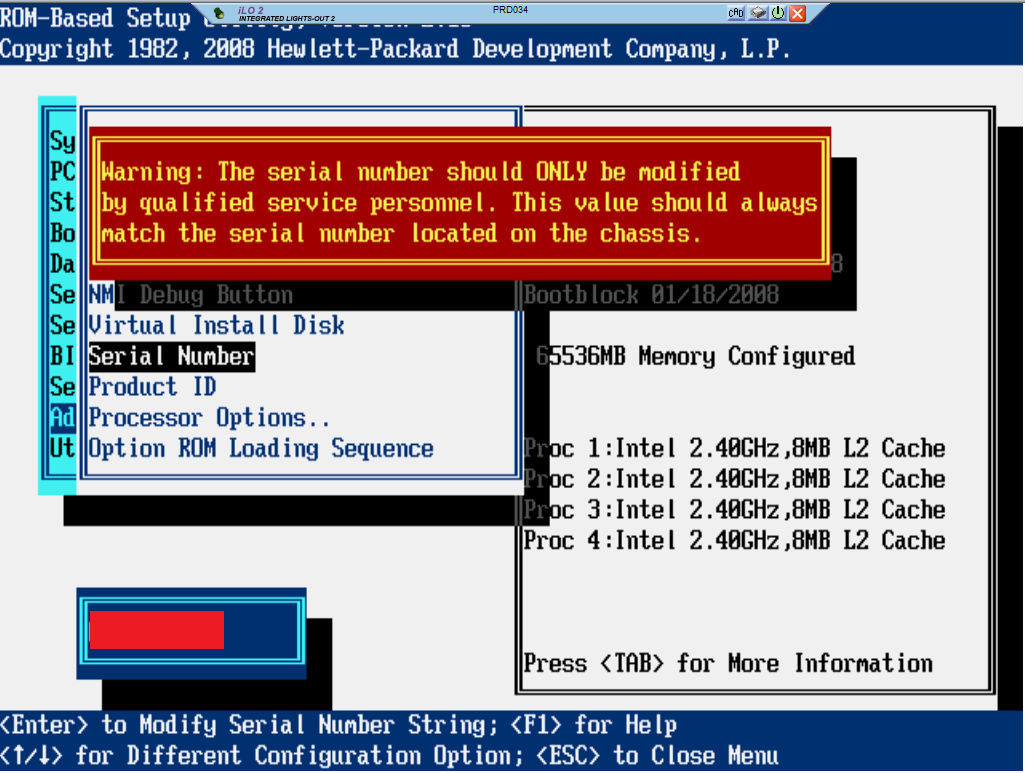
3. Select Serial Number. The following warning is displayed:
WARNING! WARNING! WARNING! The serial number is loaded into the system
during the manufacturing process and should NOT be modified. This option
should only be used by qualified service personnel. This value should
always match the serial number sticker located on the chassis.
4. Press the Enter key to clear the warning.
5. Enter the serial number and press the Enter key.
6. Select Product ID.
7. Enter the product ID and press the Enter key.
8. Press the Esc key to close the menu.
9. Press the Esc key to exit RBSU.
10. Press the F10 key to confirm exiting RBSU. The server will automatically reboot.

This is the official instructions in the manual. I applied the following steps:

1 – Advanced Options

RBSU 1 Serial Number

2 – Serial Number

RBSU 2 Serial Number

3 – Inserting the new one and then exiting

RBSU 3 Serial Number

HPOM – UXMON: There were no valid peers!

I was receiving this incident from HPOM

Node : linuxnode.setaoffice.com
Node Type : Intel/AMD x64(HTTPS)
Severity : minor
OM Server Time: 2014-01-21 12:20:43
Message : UXMON: There were no valid peers!
Msg Group : OS
Application : ntpmon
Object : ntpq
Event Type :
not_found

Instance Name :
not_found

Instruction : This message shows athe ntpq has problems to contact
with the NTPD daemon. Is posible the NTP Daemon is down

Please, contact with your UX expert

Took a look at the log file and it was showing that is a problem with NTP

root@linuxnode:/ # tail /var/opt/OV/log/OpC/ntp_mon.log
Tue Jan 21 15:34:16 2014 : NTP Problems. There were no valid peers!
Tue Jan 21 16:08:16 2014 : working peer “172.16.4.198”, offset(255.81) greater than NTP_OFFSET_WARNING(230), please check!
Tue Jan 21 16:59:16 2014 : NTP Problems. There were no valid peers!
Tue Jan 21 17:16:17 2014 : NTP Problems. There were no valid peers!
Tue Jan 21 17:33:16 2014 : NTP Problems. There were no valid peers!
Tue Jan 21 18:41:16 2014 : NTP Problems. There were no valid peers!
Tue Jan 21 19:49:16 2014 : NTP Problems. There were no valid peers!
Tue Jan 21 20:06:16 2014 : NTP Problems. There were no valid peers!
Tue Jan 21 21:14:16 2014 : NTP Problems. There were no valid peers!
Tue Jan 21 21:31:16 2014 : NTP Problems. There were no valid peers!

Apparently it is not synchronizing with more than one peer

root@linuxnode:~ # ntpq -p
remote refid st t when poll reach delay offset jitter
==============================================================================
172.23.72.50 .INIT. 16 u – 16 0 0.000 0.000 0.000
172.23.72.51 .INIT. 16 u – 16 0 0.000 0.000 0.000
172.23.72.52 .INIT. 16 u – 16 0 0.000 0.000 0.000
172.16.4.198 172.23.72.51 4 u 16 16 3 52.630 5.543 4.069

Edit /etc/ntp.conf and insert new NTP servers

root@linuxnode:~ #vi /etc/ntp.conf
#
#server 172.23.72.50 version 3 minpoll 4 maxpoll 4
server 142.40.238.18 version 3 minpoll 4 maxpoll 4
#server 172.23.72.51 version 3 minpoll 4 maxpoll 4
server 142.40.238.19 version 3 minpoll 4 maxpoll 4
#server 172.23.72.52 version 3 minpoll 4 maxpoll 4
server 142.40.236.20 version 3 minpoll 4 maxpoll 4
server 172.16.4.198 version 3 minpoll 4 maxpoll 4

Restart NTP

root@linuxnode:~ # /etc/init.d/ntp restart
Shutting down network time protocol daemon (NTPD) done
Try to get initial date and time via NTP from ntp.setaoffice.com done
Starting network time protocol daemon (NTPD) done

Then checking again the results

root@linuxnode:~ # ntpq -p
remote refid st t when poll reach delay offset jitter
==============================================================================
142.40.238.18 142.40.234.152 3 u 2 16 1 0.476 51.879 0.001
142.40.238.19 142.40.238.18 4 u 1 16 1 0.406 50.896 0.001
142.40.236.20 .INIT. 16 u – 16 0 0.000 0.000 0.001
172.16.4.198 .INIT. 16 u – 16 0 0.000 0.000 0.001

root@linuxnode:~ # ntpq -p
remote refid st t when poll reach delay offset jitter
==============================================================================
142.40.238.18 142.40.234.152 3 u 14 16 1 0.476 51.879 0.001
142.40.238.19 142.40.238.18 4 u 13 16 1 0.406 50.896 0.001
142.40.236.20 172.22.248.13 5 u 12 16 1 0.173 49.724 0.001
172.16.4.198 172.23.72.51 4 u 11 16 1 52.181 53.676 0.001

Java application: Your security settings have blocked a self-signed application from running

The new Java update is much more secure when running a self-signed application.

When shown this message
java1
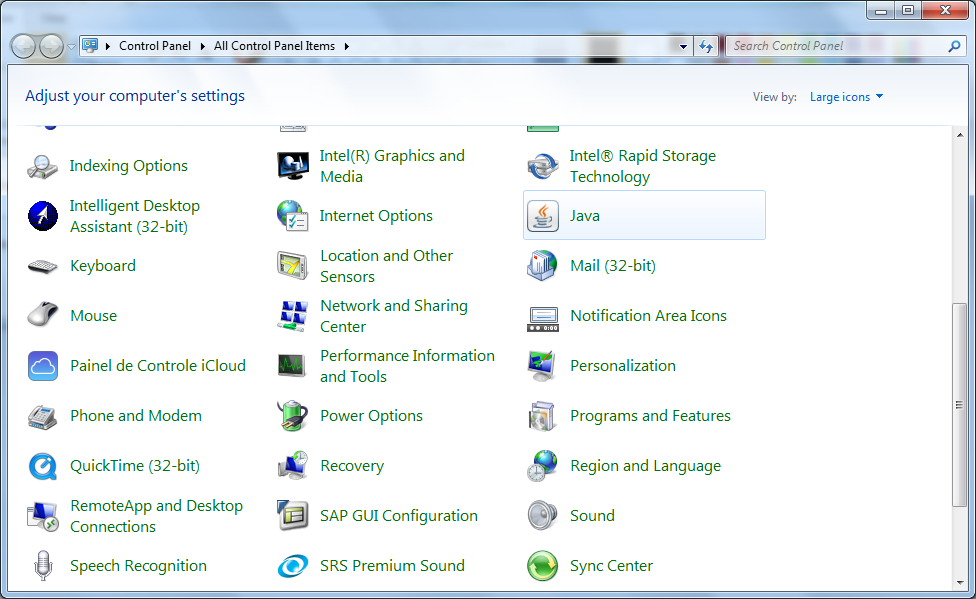
Go to the Windows Control Panel and open the Java Control Panel
java2
Go to the Security tab and set it to Medium (possible on Java 7)
java3
Close the browser and go to the website again

On Java 8 you need to add the address to the exception list and try to run again. If the applet doesn’t load you will have to use another browser or have the applet updated.
Java 8

Trying to run ipmitool and receive an error where it can’t find the ipmi device

Running ipmitool was giving the following error

root@linux:~ # ipmitool lan print
Could not open device at /dev/ipmi0 or /dev/ipmi/0 or /dev/ipmidev/0: No such file or directory
Get Channel Info command failed
Could not open device at /dev/ipmi0 or /dev/ipmi/0 or /dev/ipmidev/0: No such file or directory
Get Channel Info command failed
Could not open device at /dev/ipmi0 or /dev/ipmi/0 or /dev/ipmidev/0: No such file or directory
Get Channel Info command failed
Could not open device at /dev/ipmi0 or /dev/ipmi/0 or /dev/ipmidev/0: No such file or directory
Get Channel Info command failed
Could not open device at /dev/ipmi0 or /dev/ipmi/0 or /dev/ipmidev/0: No such file or directory
Get Channel Info command failed
Could not open device at /dev/ipmi0 or /dev/ipmi/0 or /dev/ipmidev/0: No such file or directory
Get Channel Info command failed
Could not open device at /dev/ipmi0 or /dev/ipmi/0 or /dev/ipmidev/0: No such file or directory
Get Channel Info command failed
Could not open device at /dev/ipmi0 or /dev/ipmi/0 or /dev/ipmidev/0: No such file or directory
Get Channel Info command failed
Could not open device at /dev/ipmi0 or /dev/ipmi/0 or /dev/ipmidev/0: No such file or directory
Get Channel Info command failed
Could not open device at /dev/ipmi0 or /dev/ipmi/0 or /dev/ipmidev/0: No such file or directory
Get Channel Info command failed
Could not open device at /dev/ipmi0 or /dev/ipmi/0 or /dev/ipmidev/0: No such file or directory
Get Channel Info command failed
Could not open device at /dev/ipmi0 or /dev/ipmi/0 or /dev/ipmidev/0: No such file or directory
Get Channel Info command failed
Could not open device at /dev/ipmi0 or /dev/ipmi/0 or /dev/ipmidev/0: No such file or directory
Get Channel Info command failed
Invalid Channel 255

After loading the following kernel modules, the problem was solved

root@linux:~ # modprobe ipmi_msghandler
root@linux:~ # modprobe ipmi_devintf
root@linux:~ # modprobe ipmi_si

Running again ipmitool

root@linux:~ # ipmitool lan print
Set in Progress : Set Complete
Auth Type Support :
Auth Type Enable : Callback :
: User :
: Operator :
: Admin : MD2 PASSWORD OEM
: OEM : NONE MD2 PASSWORD
IP Address Source : Static Address
IP Address : 172.23.204.25
Subnet Mask : 255.255.255.0
MAC Address : 00:1e:0b:cb:77:5c
BMC ARP Control : ARP Responses Enabled, Gratuitous ARP Disabled
Gratituous ARP Intrvl : 0.0 seconds
Default Gateway IP : 172.23.204.1
802.1q VLAN ID : Disabled
802.1q VLAN Priority : 0
Cipher Suite Priv Max : Not Available

I was receiving this error message when trying to find the iLO IP address for a server:

root@linux:~ # modprobe ipmi_si
FATAL: Error inserting ipmi_si (/lib/modules/2.6.5-7.308-bigsmp/kernel/drivers/char/ipmi/ipmi_si.ko): No such device

And in /var/log/messages it shows that is unable to find any system interface.

root@linux:~ # tail -f /var/log/messages
May 8 11:13:26 linux kernel: IPMI System Interface driver.
May 8 11:13:26 linux kernel: ipmi_si: Trying “kcs” at I/O port 0xca2
May 8 11:13:26 linux kernel: ipmi_si: Trying “smic” at I/O port 0xca9
May 8 11:13:26 linux kernel: ipmi_si: Trying “bt” at I/O port 0xe4
May 8 11:13:26 linux kernel: ipmi_si: Unable to find any System Interface(s)

root@linux:~ # cat /etc/*release
SUSE LINUX Enterprise Server 9 (i586)
VERSION = 9
PATCHLEVEL = 4
LSB_VERSION=”core-2.0-noarch:core-3.0-noarch:core-2.0-ia32:core-3.0-ia32″

This is a HP PROLIANT DL580 G3 and has a iLO v.1 so Linux says that is unable to find any System Interface. Since I’m unable to load IPMI, I was told to use an alternative method described here – Discover HP iLO IP address in Linux

Reset the password for the user Administrator in HP iLO 2

Create an XML file with the following contents

root@linux:~ # vi passwd_reset_ilo.xml
<ribcl VERSION=”2.0″>
<login USER_LOGIN=”Administrator” PASSWORD=”boguspassword”>
<user_INFO MODE=”write”>
<mod_USER USER_LOGIN=”Administrator”>
<password value=”newpassword”/>
</mod_USER>
</user_INFO>
</login>
</ribcl>

This file will reset the user Administrator with the password newpassword

Download hponcfg going here – http://www.hp.com/support/ilo2

Select the appropriate Linux operating system.
Select Software – Lights-Out Management category.
Select the HP Lights-Out Online Configuration Utility for Linux .
Select the appropriate version of the HP Lights-Out Online Configuration Utility and click the “download” button.

After installing, run as shown below.

root@linux:~ # hponcfg -f passwd_reset_ilo.xml -l log.txt
HP Lights-Out Online Configuration utility
Version 4.0.1 Date 09/24/2012 (c) Hewlett-Packard Company, 2012
Firmware Revision = 2.01 Device type = iLO 2 Driver name = hpilo
Script succeeded

Source – http://amal.net/?p=1675

Discover HP iLO IP address in Linux

Here we have a Proliant DL785 G6

root@linux:~ # dmidecode | grep -i Proliant
Product Name: ProLiant DL785 G6
Family: ProLiant

To discover the iLO IP address, check it with ipmitool

root@linux:~ # ipmitool lan print
Set in Progress : Set Complete
Auth Type Support :
Auth Type Enable : Callback :
: User :
: Operator :
: Admin : MD2 PASSWORD OEM
: OEM : NONE MD2 PASSWORD
IP Address Source : Static Address
IP Address : 172.22.29.40
Subnet Mask : 255.255.255.0
MAC Address : 00:21:5a:de:db:02
BMC ARP Control : ARP Responses Enabled, Gratuitous ARP Disabled
Gratituous ARP Intrvl : 0.0 seconds
Default Gateway IP : 172.22.29.1
802.1q VLAN ID : Disabled
802.1q VLAN Priority : 0
Cipher Suite Priv Max : Not Available

Or you can view using hponcfg and outputting the configuration to a file

root@linux:~ # hponcfg -w iLO_ouput.out
root@linux:~ # cat ILO_ouput.out
<!– HPONCFG VERSION = “3.0” –>
<!– Generated 5/8/2014 12:6:50 –>
<DIR_INFO MODE=”write”>
<MOD_DIR_CONFIG>
<DIR_AUTHENTICATION_ENABLED VALUE = “N”/>
<DIR_LOCAL_USER_ACCT VALUE = “Y”/>
<DIR_SERVER_ADDRESS VALUE = “”/>
<DIR_SERVER_PORT VALUE = “636”/>
<DIR_OBJECT_DN VALUE = “”/>
<DIR_OBJECT_PASSWORD VALUE = “”/>
<DIR_USER_CONTEXT_1 VALUE = “”/>
<DIR_USER_CONTEXT_2 VALUE = “”/>
<DIR_USER_CONTEXT_3 VALUE = “”/>
<RIB_INFO MODE=”write”>
<MOD_NETWORK_SETTINGS>
<SPEED_AUTOSELECT VALUE = “Y”/>
<NIC_SPEED VALUE = “10”/>
<FULL_DUPLEX VALUE = “N”/>
<IP_ADDRESS VALUE = “0.0.0.0”/>
<SUBNET_MASK VALUE = “0.0.0.0”/>
<GATEWAY_IP_ADDRESS VALUE = “0.0.0.0”/>
<DNS_NAME VALUE = “ILO—z”/>
<PRIM_DNS_SERVER value = “0.0.0.0”/>
<DHCP_ENABLE VALUE = “Y”/>
<DOMAIN_NAME VALUE = “”/>
<DHCP_GATEWAY VALUE = “Y”/>
<DHCP_DNS_SERVER VALUE = “Y”/>
<DHCP_STATIC_ROUTE VALUE = “Y”/>
<DHCP_WINS_SERVER VALUE = “Y”/>
<REG_WINS_SERVER VALUE = “Y”/>
<PRIM_WINS_SERVER value = “0.0.0.0”/>
<STATIC_ROUTE_1 DEST = “0.0.0.0” GATEWAY = “0.0.0.0”/>
<STATIC_ROUTE_2 DEST = “0.0.0.0” GATEWAY = “0.0.0.0”/>
<STATIC_ROUTE_3 DEST = “0.0.0.0” GATEWAY = “0.0.0.0”/>
</MOD_NETWORK_SETTINGS>
</RIB_INFO>
<USER_INFO MODE=”write”>
</USER_INFO>
</LOGIN>
</RIBCL>

Related: Trying to run ipmitool and receive an error where it can’t find the ipmi device